How to Connect Binance to BitStat with a Read-Only API Key
Create a read-only Binance API key, disable trading and withdrawals, and connect your Crypto Futures account to BitStat in about five minutes.
Last updated:
This walkthrough connects a Binance Crypto Futures account to BitStat in about five minutes. You will create a dedicated API key that can read account and trade history without receiving permission to place trades or withdraw funds.
Security rule: enter the API Key and Secret Key only in the official BitStat account connection form. Never send them through chat, email, screenshots, or support messages. Revoke the key in Binance immediately if it is exposed.
1. Sign in to Binance and enable 2FA
Open the official Binance website and sign in to your account. Confirm that two-factor authentication is enabled, because Binance requires 2FA before an API key can be created.
2. Open API Management
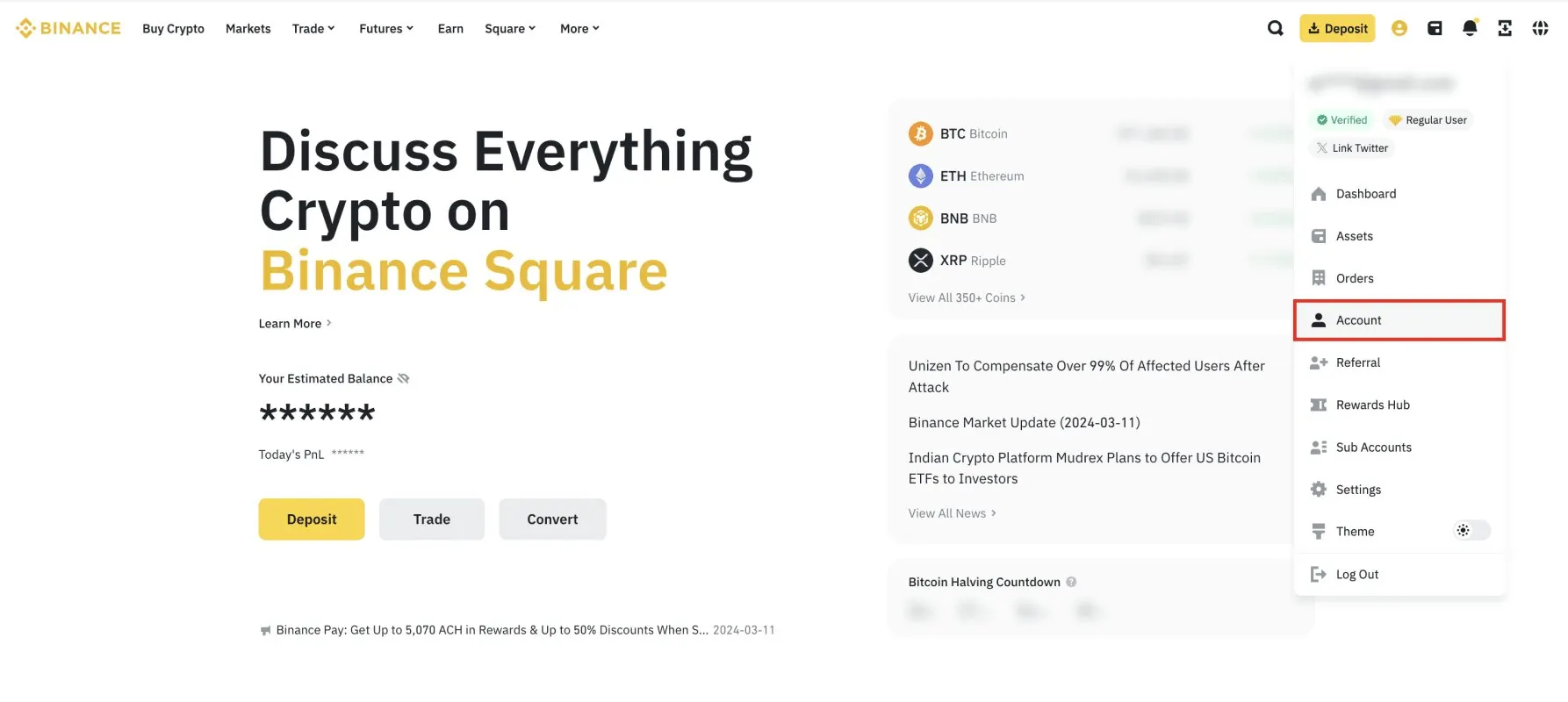
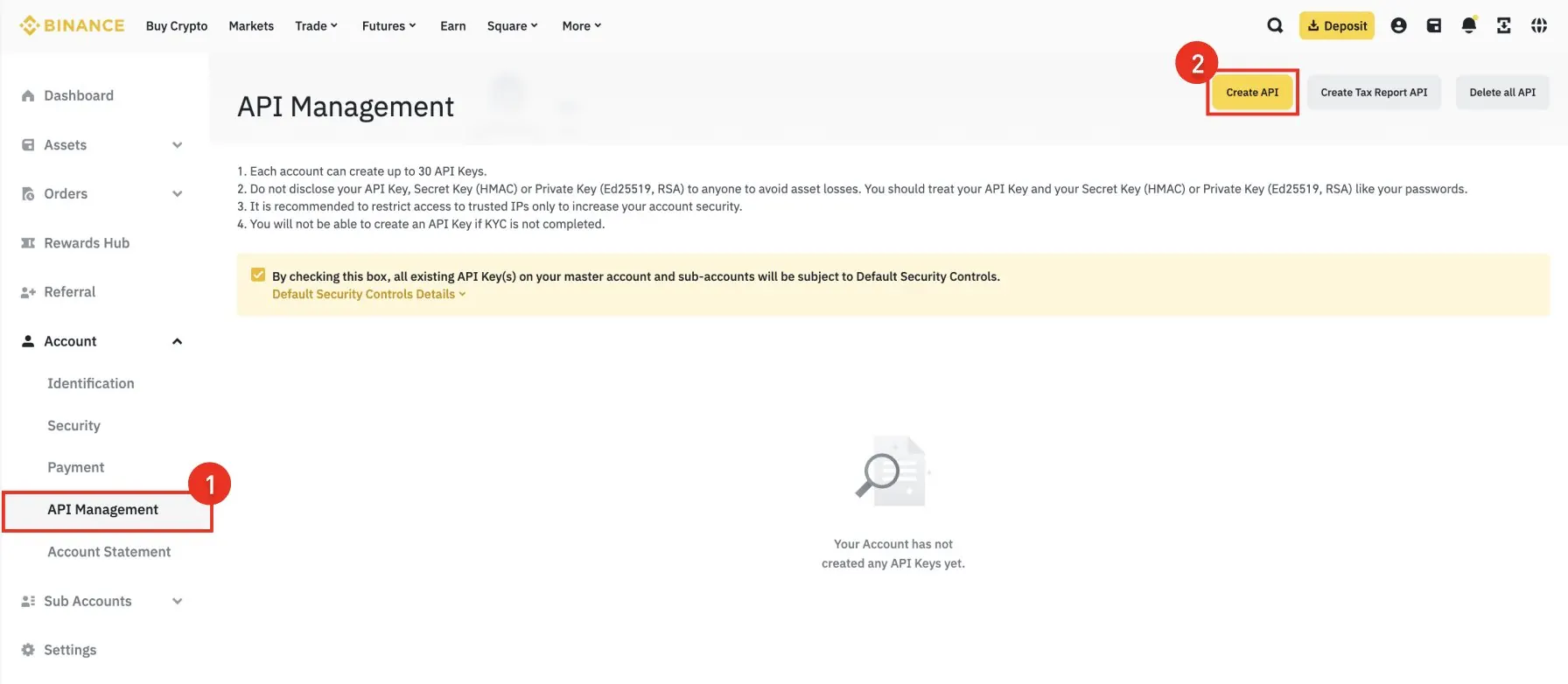
Select the profile icon in the upper-right corner, open Account, and choose API Management in the left menu. You can also open the Binance API Management page directly after signing in.
3. Create a dedicated system-generated key
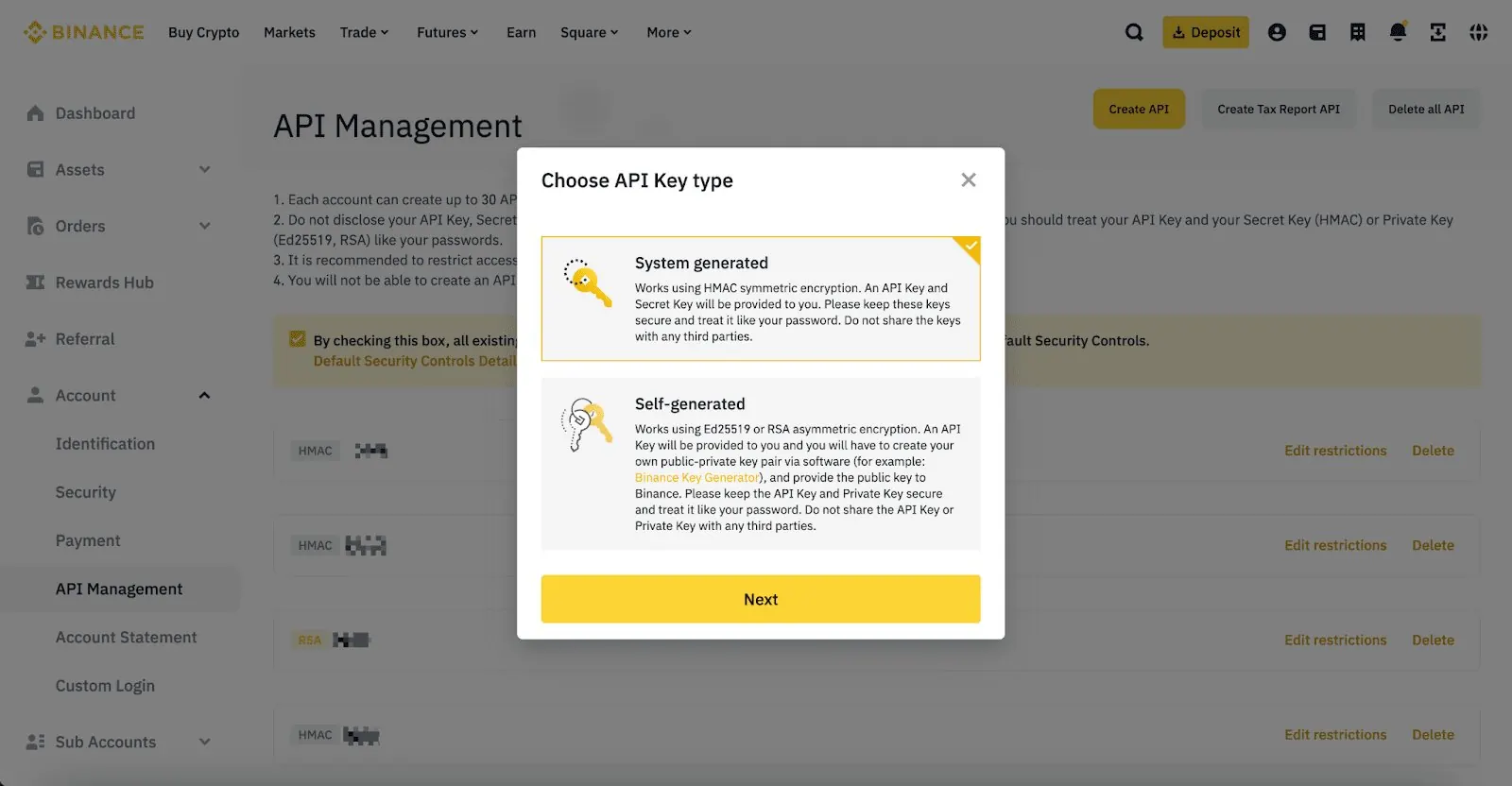
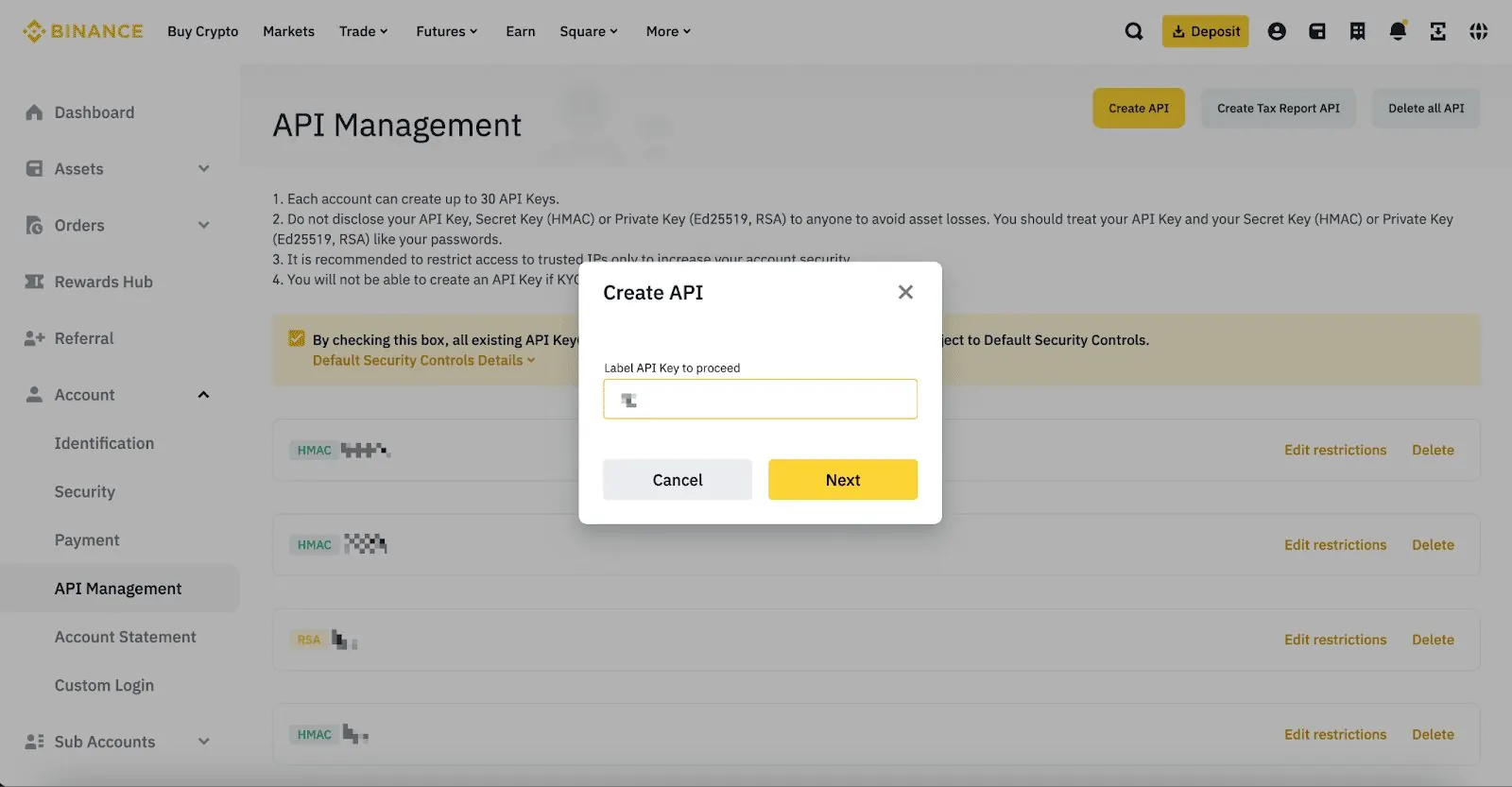
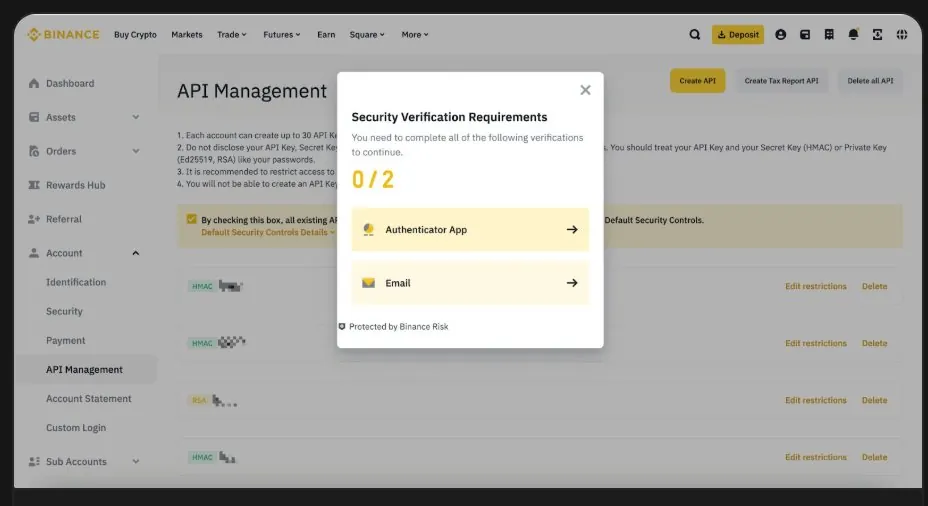
Select Create API, choose System generated, and give the key a recognizable name such as BitStat. Complete the email and authenticator confirmations requested by Binance.
4. Keep the key read-only
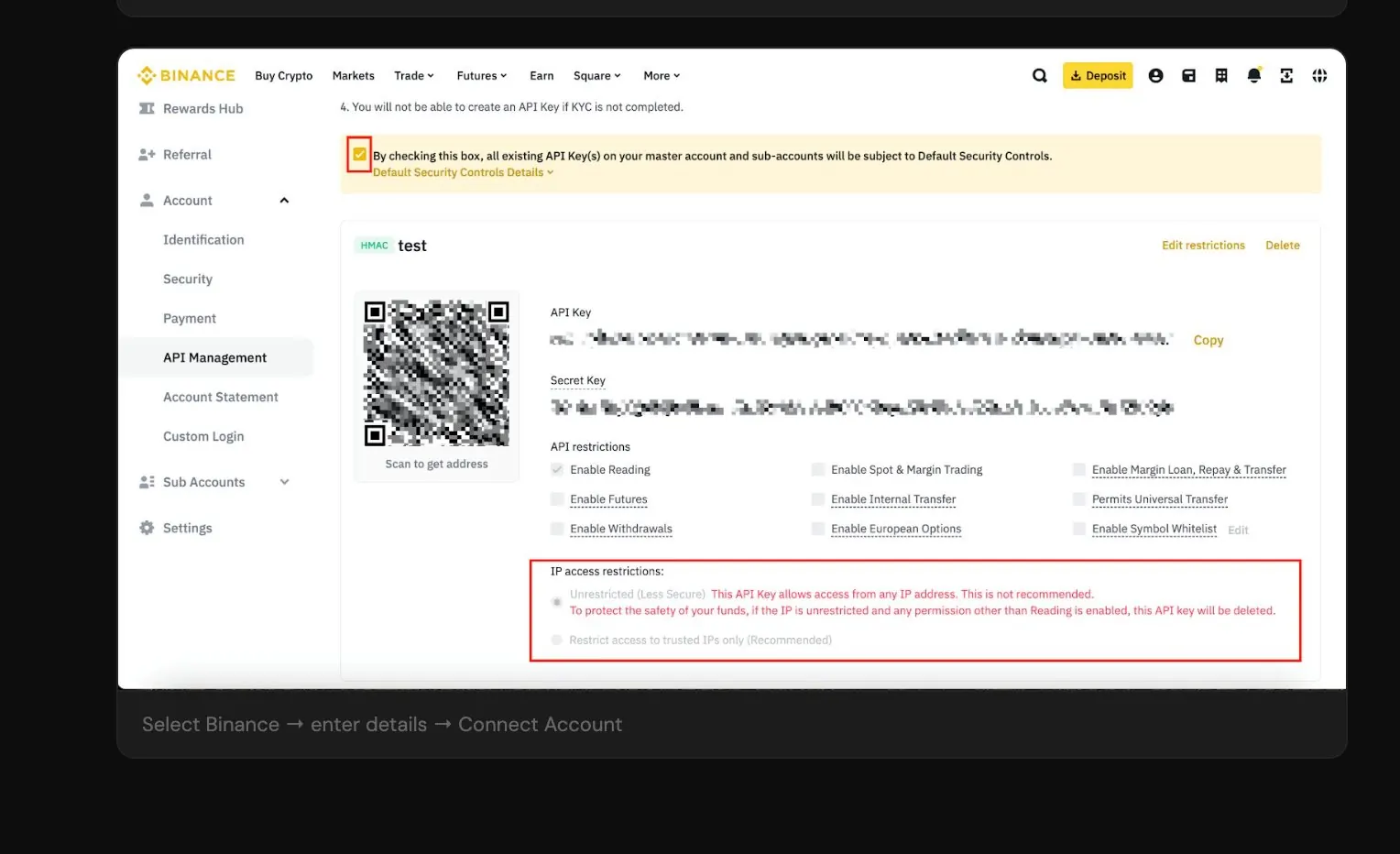
Review the permission list before saving. BitStat needs private account and trade-history data, not permission to execute actions on the exchange.
- Keep Enable Reading enabled.
- Leave Spot & Margin Trading and Futures trading disabled.
- Leave withdrawals and every other write permission disabled.
A read-only key follows least privilege: it exposes only the data required for journal synchronization. If a permission is not needed for reading history, do not enable it.
5. Copy the credentials once
Binance shows the API Key and Secret Key after creation, but the Secret Key is displayed only once. Keep both values private and paste them directly into the BitStat connection form. If the secret is lost, delete the key and create another read-only key instead of trying to recover it.
6. Connect Binance in BitStat
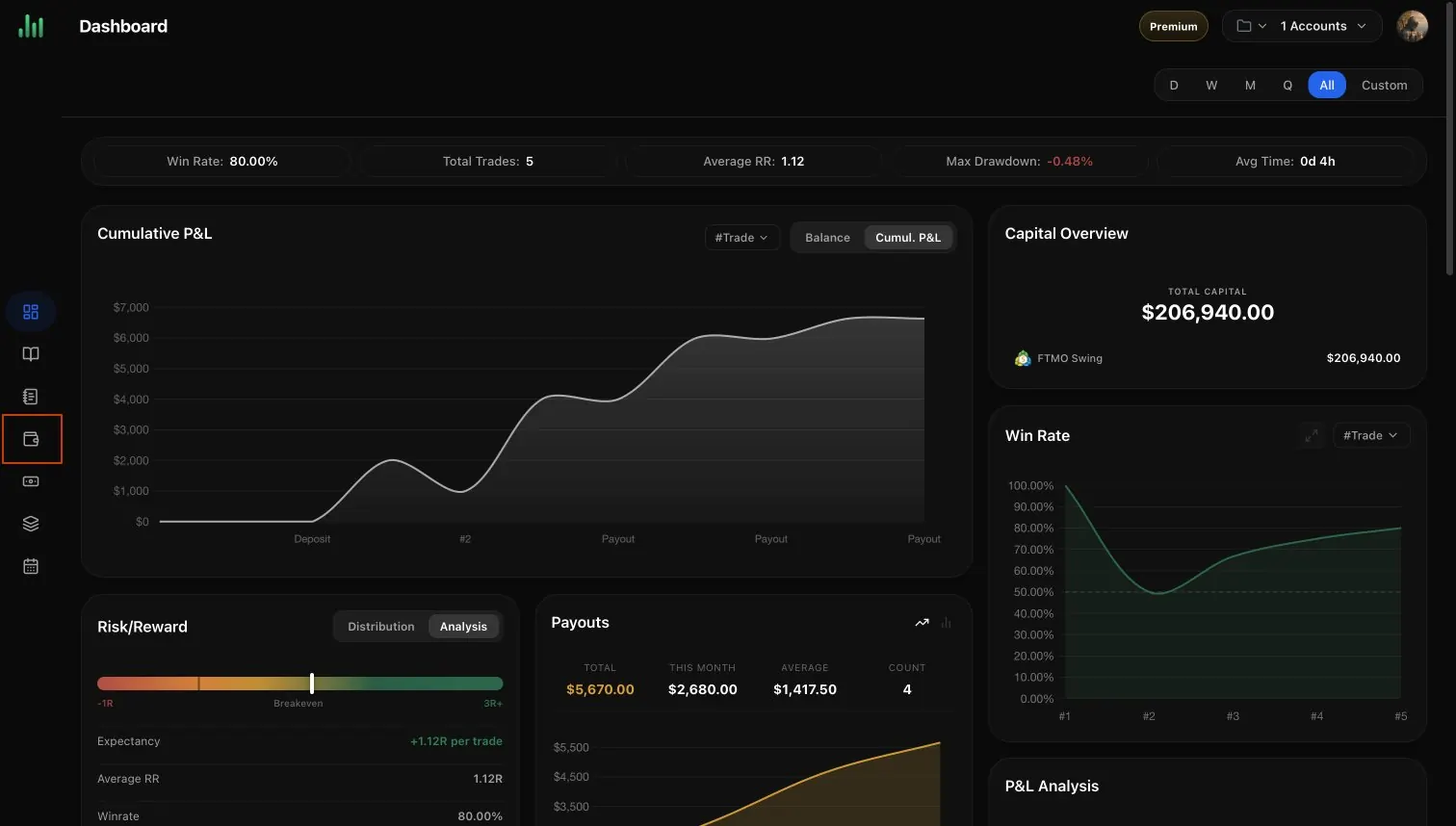
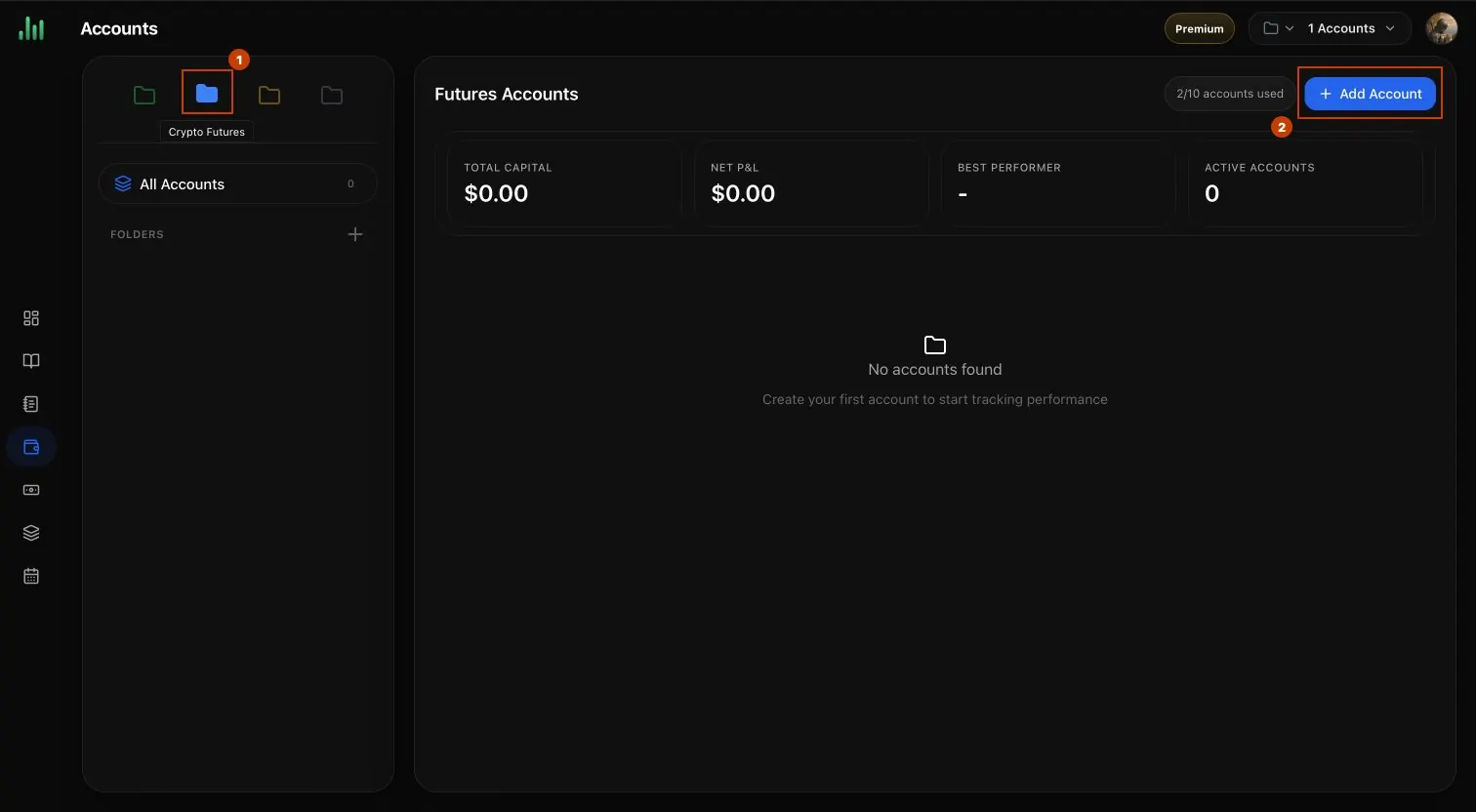
In BitStat, open Accounts, select the Crypto Futures tab, and choose Add Account. Select Binance, enter an account name, paste the API Key and API Secret, and select Connect Account.
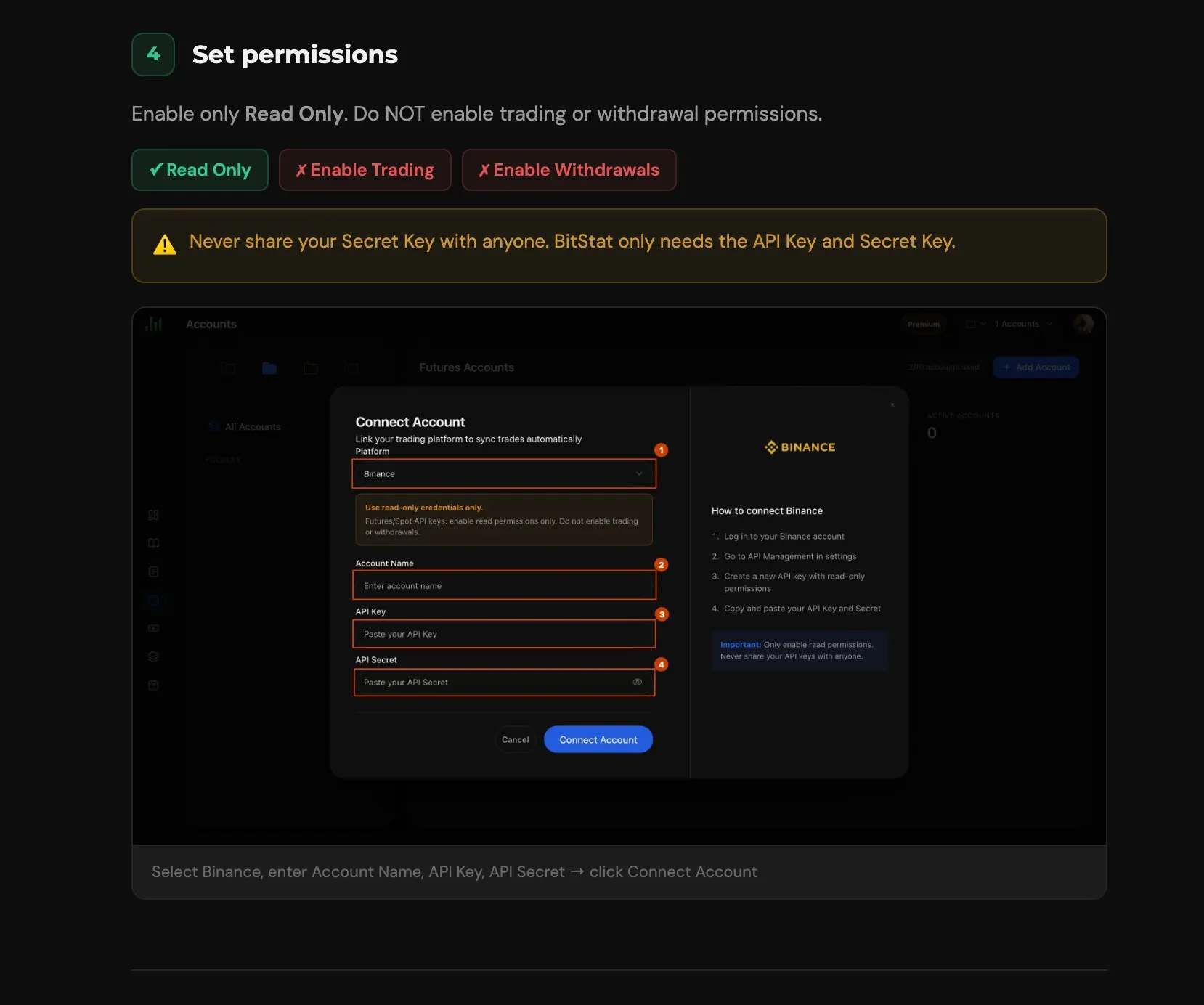
BitStat will begin synchronizing the available Binance trade history after the connection succeeds. The first import can take a few minutes.
Final security check
- The key has reading access only.
- Trading and withdrawal permissions are disabled.
- The credentials were entered only on the official BitStat form.
- You know where to revoke the key in Binance if access is no longer needed.
Frequently asked questions
Which Binance API permissions does BitStat need?
What if Binance no longer shows the Secret Key?
Can BitStat trade or withdraw funds with this key?
Where is it safe to enter the API Secret?

BitStat Team
Practical research and repeatable workflows for traders who want evidence behind every decision.
How to Connect Bybit to BitStat with Read-Only API Access
Create read-only Bybit credentials with the minimum Orders, Positions, and Account Transfer scopes, then sync futures history to BitStat.
One-Step vs Two-Step Prop Firm Challenges: What Actually Changes
Most comparisons stop at phase count, but the profit target split, drawdown type, minimum trading days, and consistency rules can all differ between one-step and two-step versions of the same program. Real numbers from FTMO and FXIFY, and a decision framework for which format fits which trader.
Backtesting vs Trade Journaling: Why You Need Both
Backtesting simulates a strategy against historical price data before any capital is risked; a trading journal records what actually happened once real orders were placed. Why the two are complementary, not interchangeable, and how to use them together.